Do it with standard AutoCAD
- Open one drawing.
- Use ATTOUT from Express Tools to select the title block and export it to a text file.
- Open the file in Excel, edit the values, and save it in the same format.
- Use ATTIN to read the edited file back in.
- Save and close the drawing, then repeat steps 1 to 4 for the next drawing.
ATTOUT and ATTIN work on one open drawing only, so you repeat the same operation for every drawing.
Ask AI to do it in one step
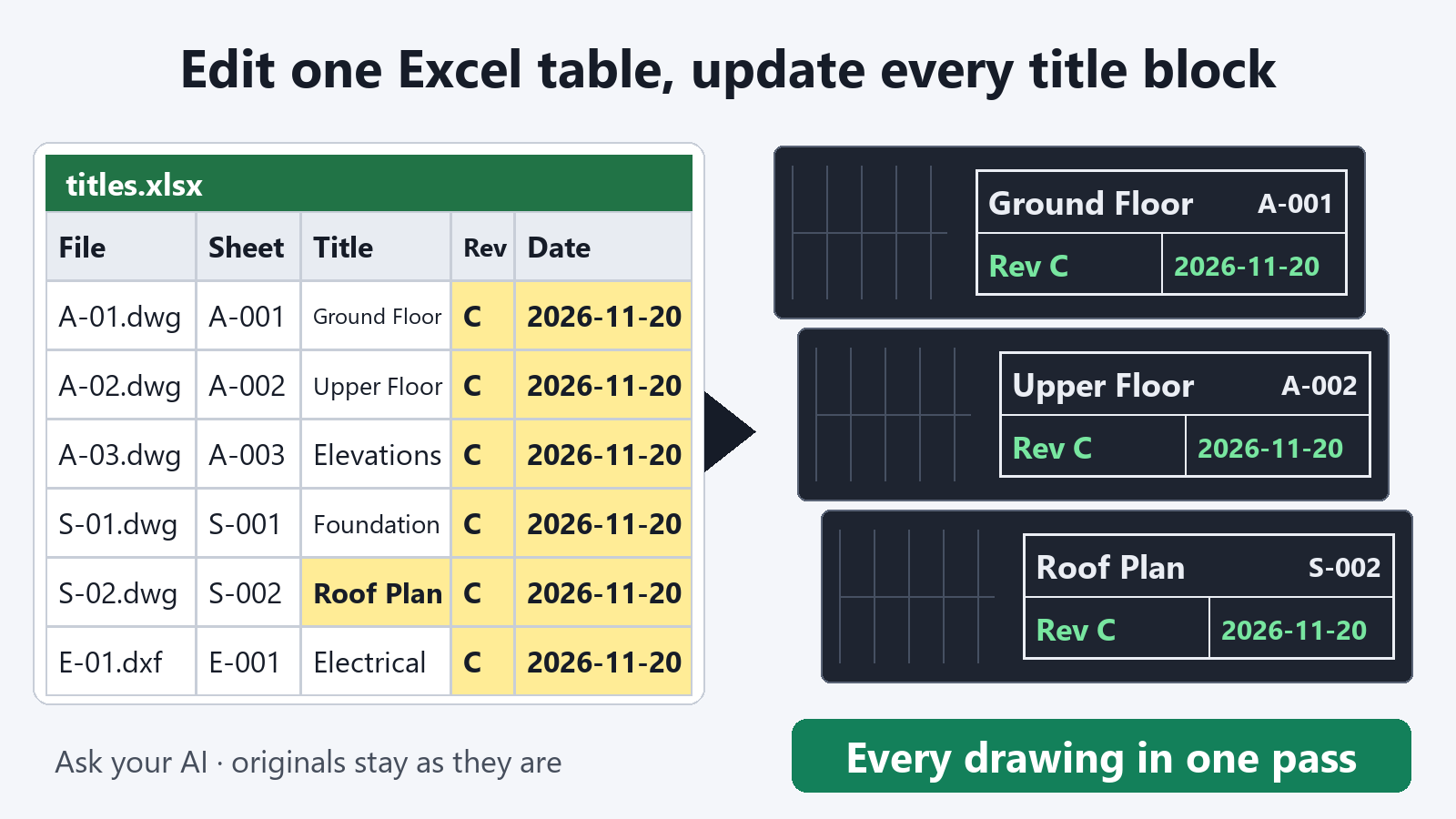
Start AutoCAD, then ask an AI client with Excel to Title Blocks for AutoCAD installed (such as Claude Desktop) to create the table first.
"Export the title blocks of the drawings in C:\Drawings\ProjectA to C:\Drawings\titles.xlsx"
Open the table in Excel and edit what you need. The usual Excel operations work as they are, such as copying a value down or using Find and Replace to change many cells at once. The first four columns (file, layout, block, no) identify which title block each row belongs to, so leave them as they are.
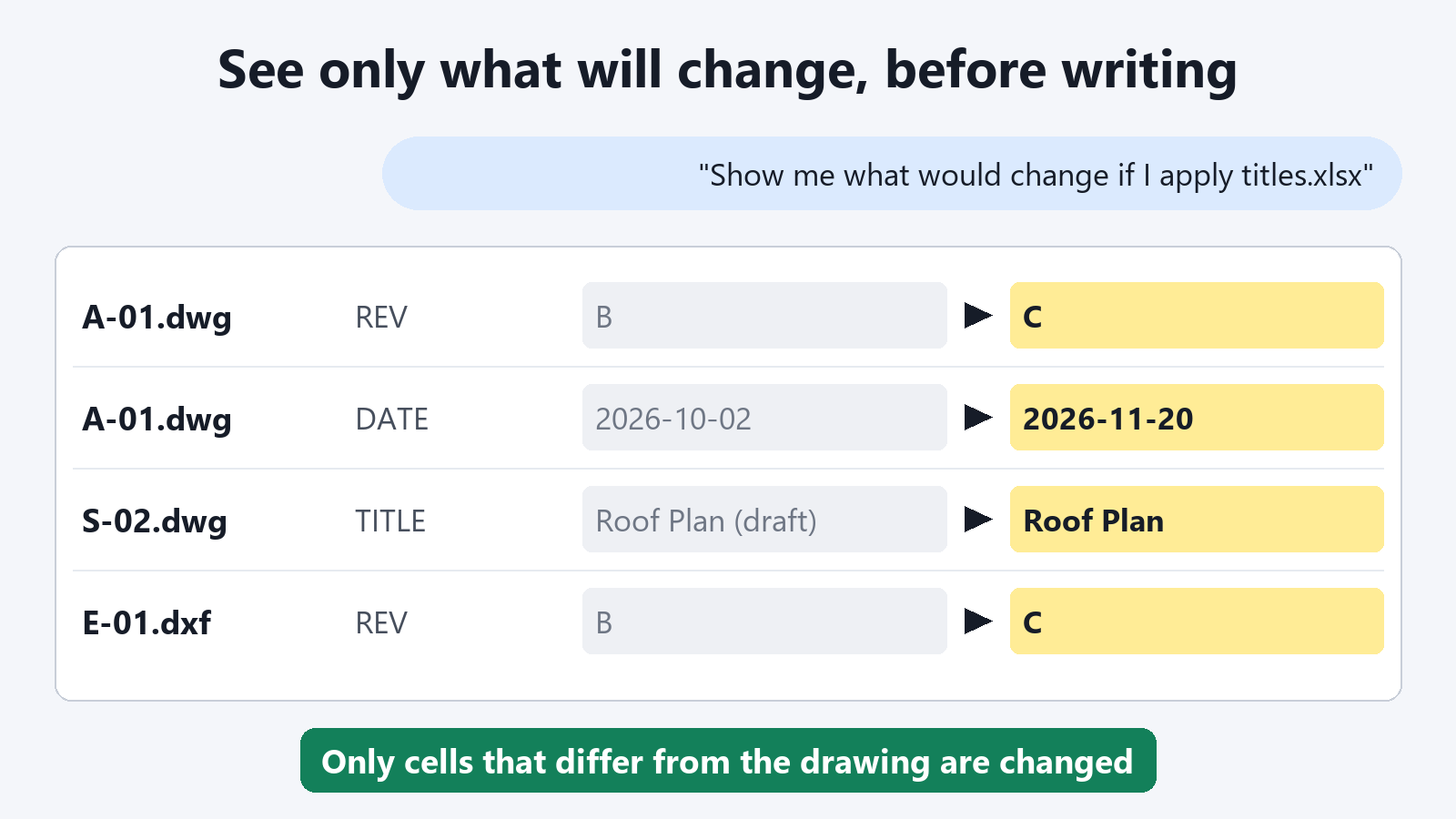
When you finish editing, ask to see what would change, and then write it back.
"Show me what would change if C:\Drawings\titles.xlsx is applied to the drawings in C:\Drawings\ProjectA"
"Write it back and save the drawings in a folder named Updated"
Only cells that differ from the drawing are changed. Changed drawings are saved with the same file name in a different folder.
Built so you can trust it
- Your original files are not changed. Updated drawings are saved to a different folder. If a file with the same name already exists, it is not overwritten. Drawings with nothing to change are not saved, so the destination folder contains only the drawings that were updated.
- You can check before writing back. The table is compared with the drawings, and only the changes are returned as a list for each drawing. A check alone changes nothing in the drawings.
- Saved drawings are read back and verified. Only drawings that contain all the values planned for writing are saved, so no half-updated drawing is left behind.
- Values go in exactly as typed. 001 stays 001. If Excel has turned a cell into a date or TRUE/FALSE, you are told which cell, and it is not written.
- Fields are kept. Attributes that contain fields that update automatically, such as the plot date, are left as they are. To replace them with the values in the table, ask "Write it back and overwrite the fields too".
Exporting title blocks and checking what would change are free. Writing back to the drawings is a subscription feature.
FAQ
What happens if I empty a cell?
The attribute in the drawing also becomes empty. Leave any cell you do not want to change at the value it had when exported.
Will a longer new value overflow the title block frame?
Add a request such as "Narrow the width of values that became longer", and the text width is narrowed so the value fits the frame. If you do not ask for it, you are told how many values became longer than before.
How do I know what could not be written?
Drawings that are not in the folder, tags that are not in the block, attributes on locked layers, and similar cases are returned in a list with the reason.
Can I use a table saved as .csv?
Yes. A table saved as .csv from Excel can be used for writing back as it is.