Do it with standard AutoCAD features
- Run DATAEXTRACTION and start a new data extraction in the Data Extraction wizard.
- Add the folder or the drawings you want in the drawing list.
- In the list of objects, check only the title block.
- In the list of properties, select the attributes for drawing number, drawing title, revision and date.
- Output the result to an external file (.xls).
If you manage drawings with a sheet set, you can also create a sheet list table inside a drawing.
Ask AI to do it in one step
Start AutoCAD. Then ask an AI client with Excel to Title Blocks for AutoCAD installed (such as Claude Desktop):
"Export the title blocks of the drawings in C:\Drawings\ProjectA to C:\Drawings\drawing-list.xlsx"
The tool reads each DWG and DXF file in the folder, finds the title block automatically, and puts everything in one table. Each row has the file name and layout name, followed by the title block values (drawing number, drawing title, revision, date and so on). The column names are the names of the title block tags.
What you can use the drawing list for
- Checking before issue. Sort and filter in Excel to find one drawing with an older revision than the rest, an empty date, or a duplicated drawing number.
- Drawing register. Keep only the columns you need and use the result as the base of the drawing register you issue.
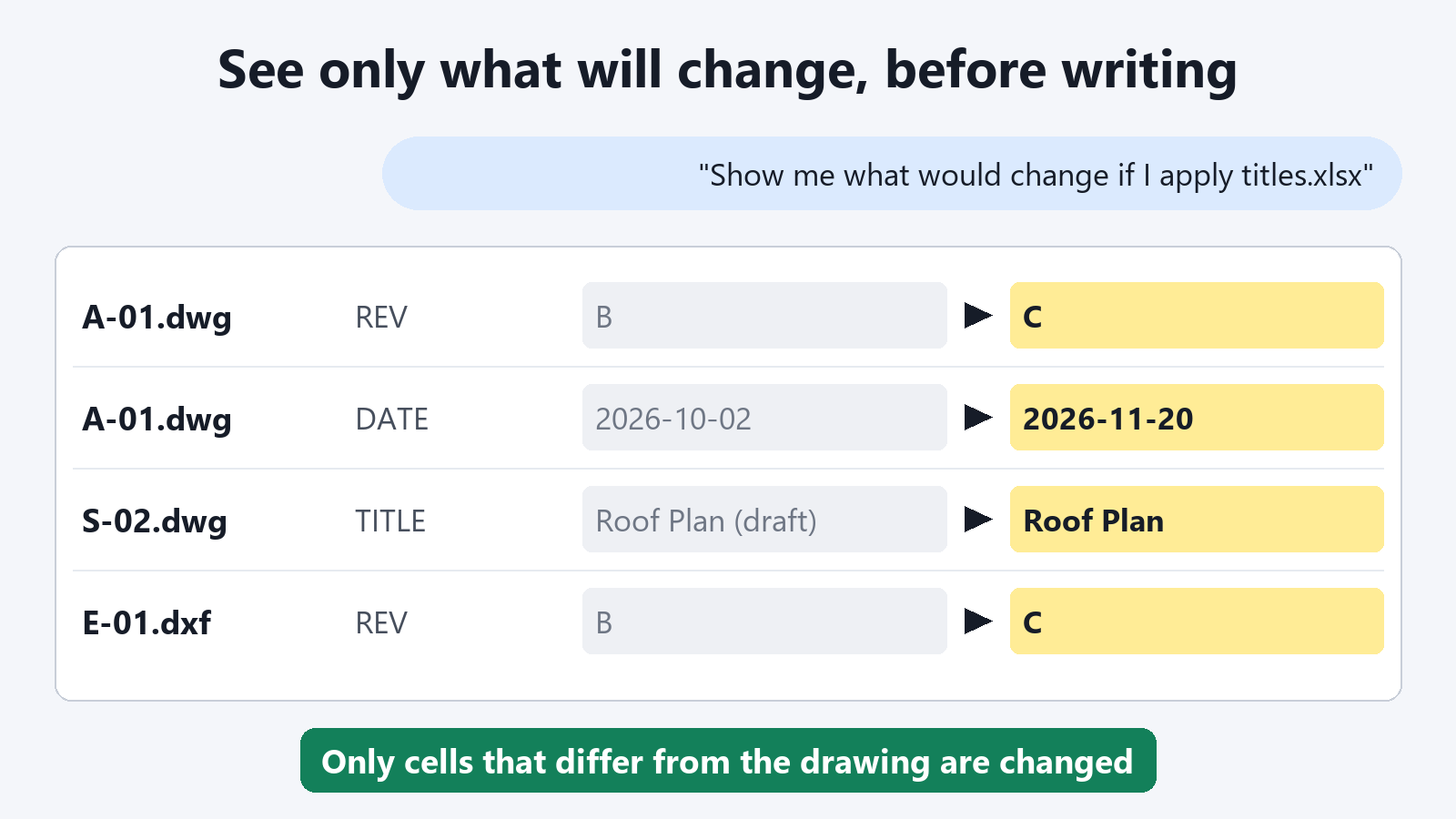
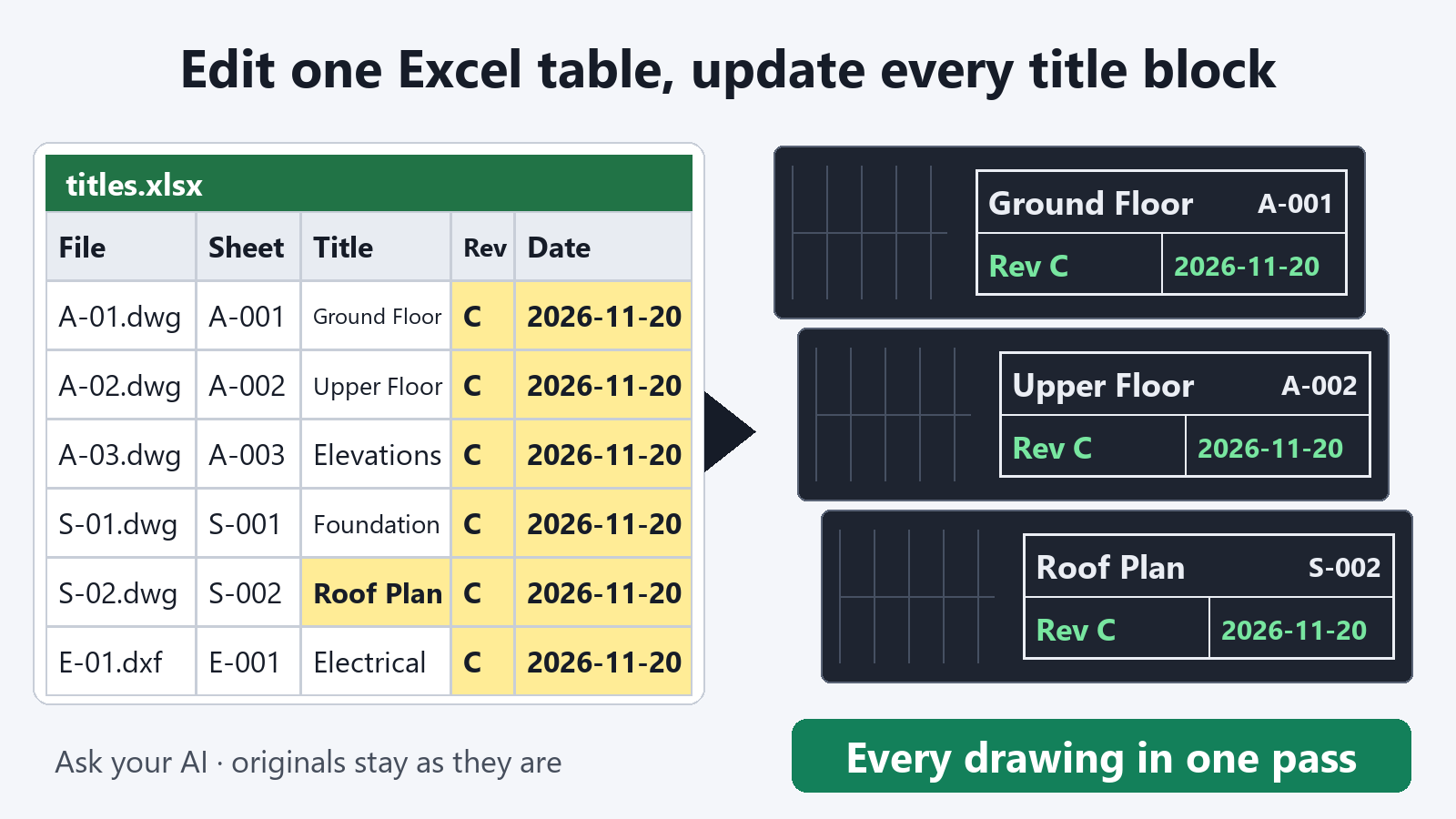
- Writing corrections back. Correct drawing titles or revisions in the list, then ask the AI to write them back to the title blocks.
Safe to leave to the AI
- Your drawings are not changed. Exporting only reads the drawings.
- Drawing numbers appear exactly as in the title block. Values such as 001 or A-101 are exported so that Excel does not convert them into another format.
- The drawing you are working in is left alone. The drawing currently open in AutoCAD is not touched.
Exporting title blocks is free, with no limit on the number of times you use it.
FAQ
How do I update the list when drawings are added?
Export again with a different file name. A new table is made from the drawings in the folder at that time. The earlier table is not overwritten and stays as it is.
Can I create the list on a PC without AutoCAD?
For DXF files, you can export without starting AutoCAD. For DWG files, use it with AutoCAD for Windows running.
How are drawings with several layouts listed?
One title block is one row. If each layout has a title block, you get as many rows as there are layouts.