Steps in standard AutoCAD
- Open one drawing.
- Double-click the title block to open the Enhanced Attribute Editor.
- Retype the revision and date values, then click OK.
- If the drawing has several layouts, repeat steps 2 and 3 for each layout.
- Save and close the drawing, then move on to the next one.
If the revision and date are sheet set custom properties, and the title block shows them as fields, you can change the value in one place in Sheet Set Manager. The fields update when each drawing is opened. This method does not work for drawings where the values are typed directly into attributes.
Ask AI to do it in one step
Start AutoCAD, then give these instructions to an AI client (such as Claude Desktop) that has Excel to Title Blocks for AutoCAD installed.
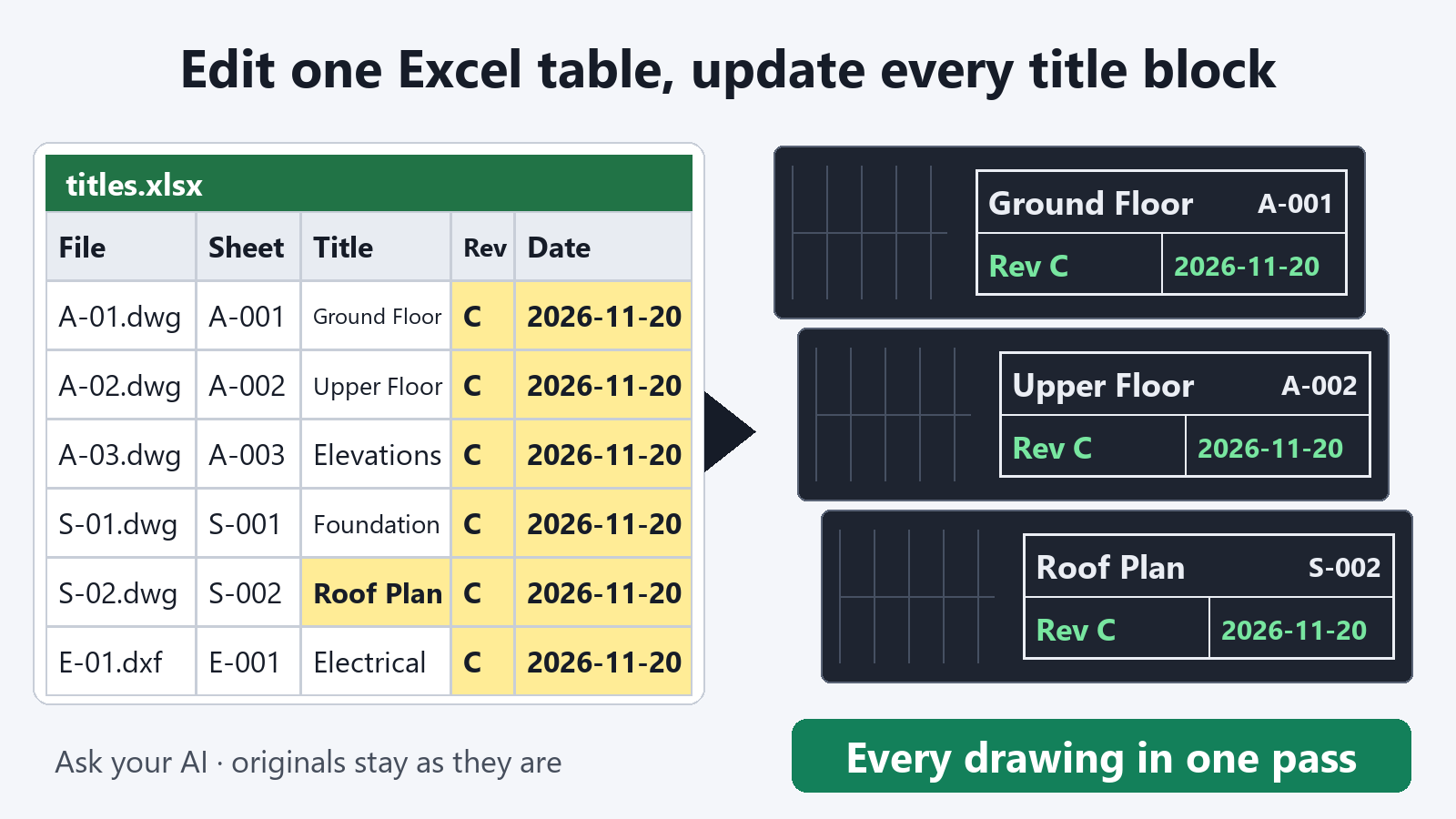
"Export the title blocks of the drawings in C:\Drawings\ProjectA to C:\Drawings\titles.xlsx"
Open the table in Excel. Change the top cell of the revision column to C and copy it down. Do the same for the date column. If only some drawings have a different revision, give just those rows a different value.
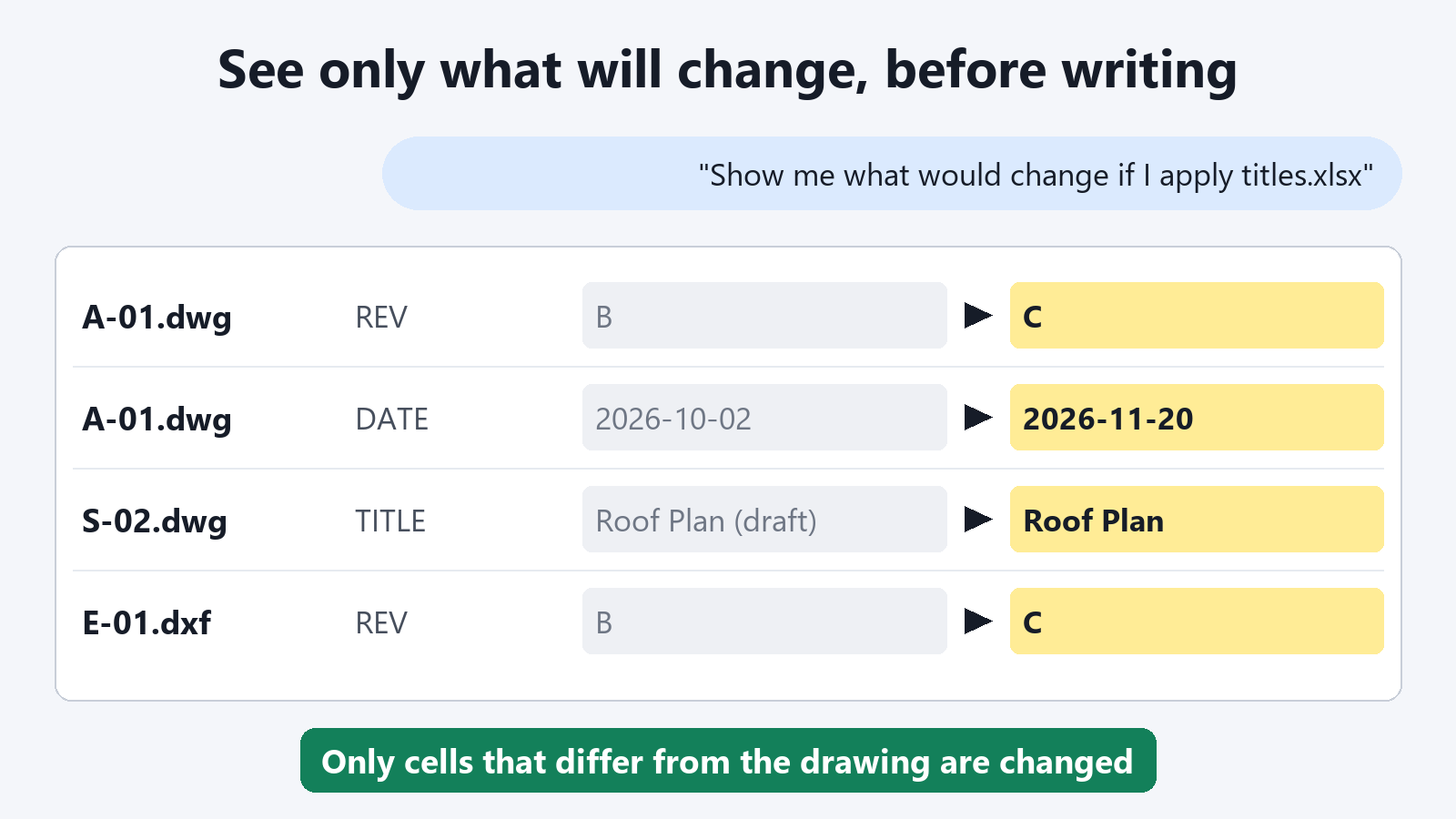
"Show me what would change if C:\Drawings\titles.xlsx is applied to the drawings in C:\Drawings\ProjectA"
Only the changes are listed for each drawing, for example "revision B to C" and "date to 2026-11-20". If this is what you intended, write it back.
"Write it back and save the drawings in a folder named Issued"
Why you can trust it with this job
- Your original files are not changed. Updated drawings are saved to a separate folder, so the state before issue stays as it was.
- You see the changes first. Before writing back, you can check that you have not touched any column you did not mean to change.
- Dates are entered as you typed them. If Excel has converted a cell to a date format, the cell is reported and not written. Set the cell format to Text and retype the value, and it goes into the title block in the form you want.
- Saved drawings are read back and checked. Only drawings that contain all the values that were to be written are saved.
Exporting title blocks and previewing what would change are free. Writing the values back into the drawings is a subscription feature.
FAQ
Does the revision column have to be named "revision"?
No. The column names in the table are the tag names of the attributes in the title block. You can use REV, a revision mark tag, or whatever tag your drawings already use.
Does it work if a drawing has several layouts?
Yes. Each title block is one row, so the title block on each layout appears in its own row.
Can I also update the revision history (the rows of the revision table)?
If the revision table is made of attributes of the title block, those attribute columns appear in the table. You can edit them in the same way.