Drawing Rule Fixer for AutoCAD
Ask your AI (such as Claude Desktop) in plain English, and it fixes the layers, colors, linetypes and text height of the drawings you receive to your company CAD standard, in one go.
¥1,980per month · unlimited fixes
Download free (checking is free, no card)Renews monthly; cancel any time. Within 14 days of your first payment, write to us for a full refund. The price is set in Japanese yen, and the payment page shows the final amount, with any tax for your country, before you pay. Payment is handled on Stripe's page. Works with the AI you already use. By subscribing you agree to the terms of use (Japanese).

Ask your AI in plain English, and the drawing follows your standard

One request: "Fix it to match our standard"
Merges layers with other names, sets color and linetype overrides back to ByLayer, raises small text and corrects layer colors and linetypes, all in one pass. Add them to the rules, and linetype scale, lineweight, Z values and old text and dimension styles are brought in line in the same pass.
- A fix is one undo step in AutoCAD
- You decide when to save; the drawing is never saved automatically
- See what will be fixed, and how many, before fixing
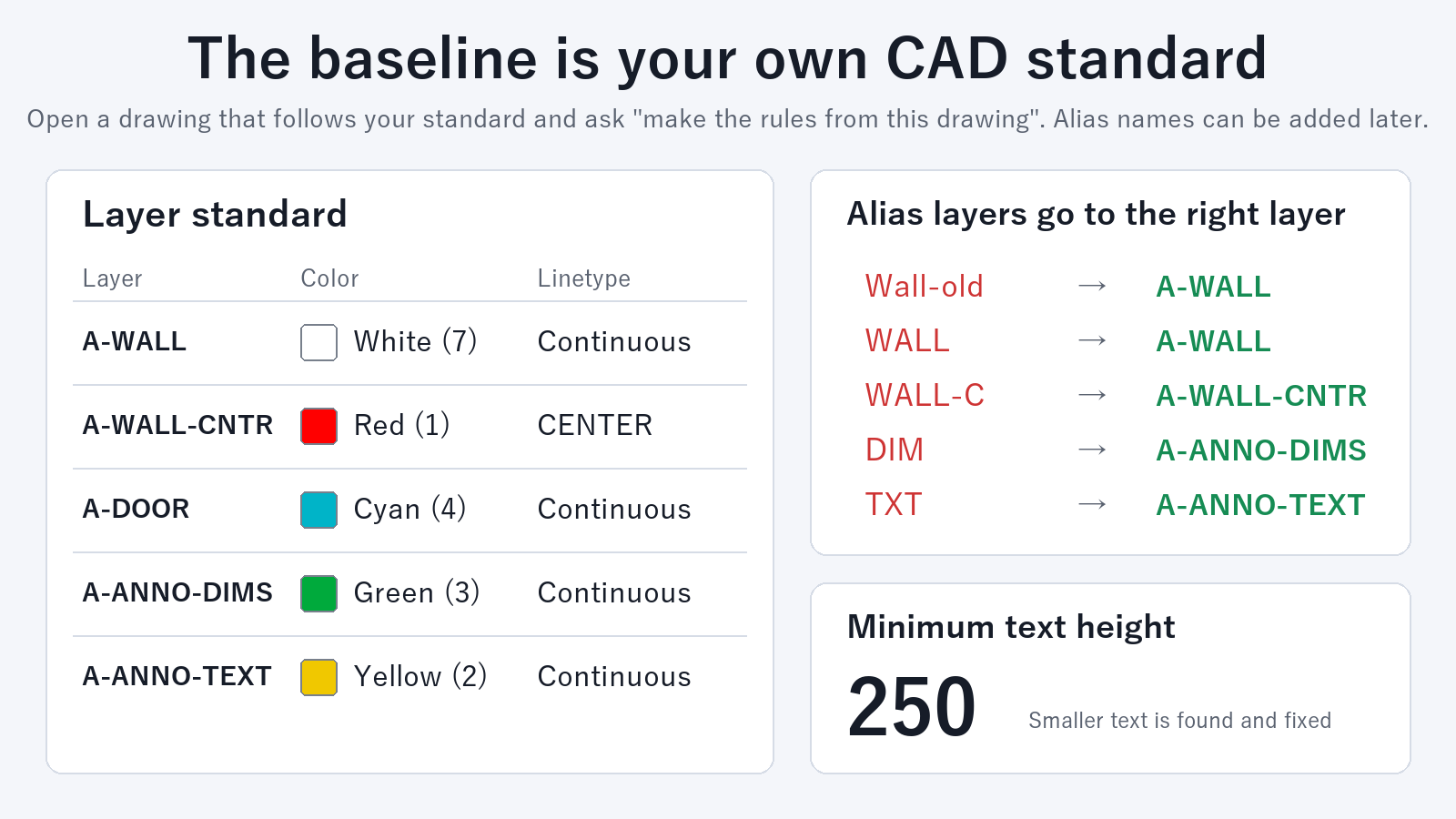
Your company standard, taken from a template drawing
Open a template drawing that follows your standard and ask, "Create rules from this drawing." A rules file is made. Your CAD standards file (.dws) can be the reference too.
- Add layer names to merge and a minimum text height at any time
- Ask your AI to add "linetype scale 1, lineweight ByLayer, Z value 0" or "move old text and dimension styles to ours"
- Drawing files are read on your own PC
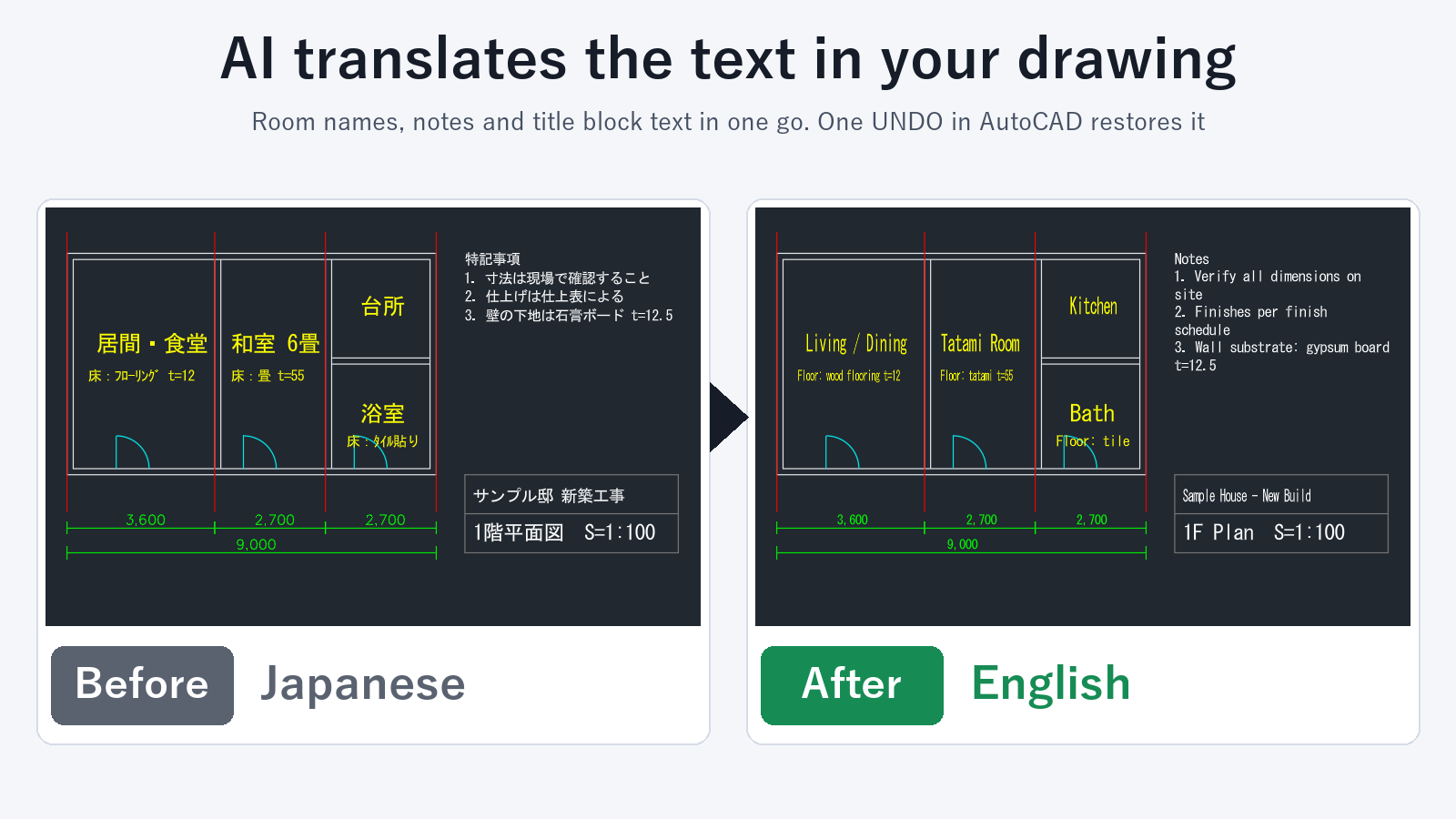
Translate and tidy up drawing text in one go
Ask, "Translate the drawing text into English and write it back." The text in the drawing is listed, and the AI translates it, fixes typos or makes terms consistent, then writes it back. Text, multiline text, block attributes, dimension text and multileaders are covered.
- The same wording is replaced everywhere at once
- See what will change before it is written back
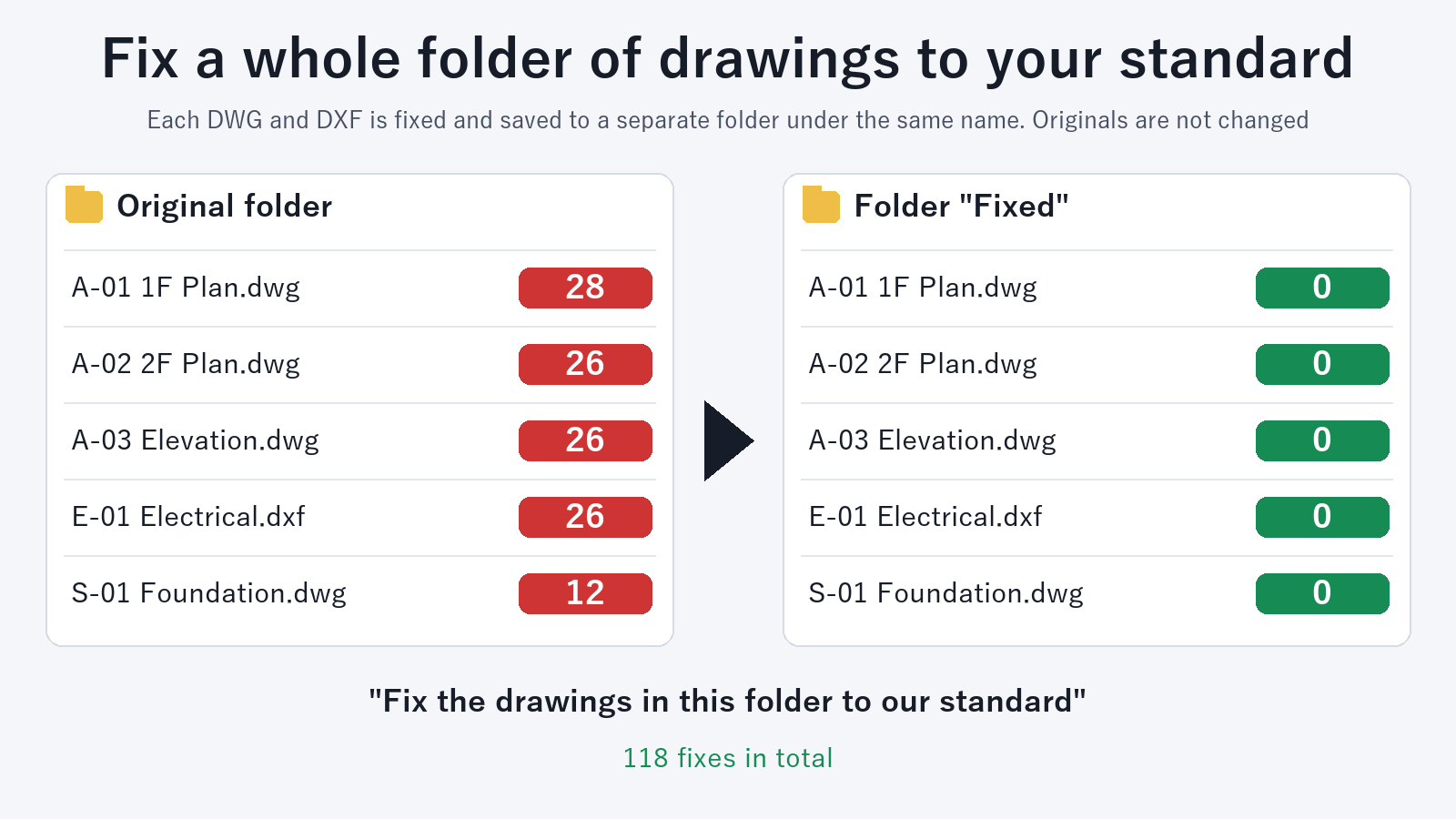
Check, fix and translate a whole folder of drawings
Check all the DWG and DXF files in a folder and get a table of what differs in each drawing. Then ask for a fix to your standard, or a translation, for the whole folder. Results are saved in a separate folder under the same file names, and the original files stay as they are. A folder of DXF files can be handled without starting AutoCAD.
- Objects on layer 0 and layers outside your standard are reported too
- The most requested checks go into the next version first
Free features and subscription
Free tells you where a drawing differs from your standard. For ¥1,980 a month, the AI also does the fixing.
Free
¥0no card · no usage limit
- Checking a drawing (one at a time, with counts and a list)
- Listing layers and text
- Previewing a fix or a text change
- Creating a rules file
Subscription
¥1,980per month
- Fixing drawings, as often as you like
- Writing text back (translation, consistent wording)
- Checking, fixing and translating a whole folder of drawings (DWG and DXF)
- Everything in Free
- Cancel any time; refund within 14 days
Get started
- DownloadDownload the extension file. There is nothing to unzip.
- Add it to Claude DesktopIn Claude Desktop, open Settings, then Extensions. Drag the downloaded file onto that page and press Install. There is no settings file to edit.
- Open a drawing and askOpen a drawing in AutoCAD and ask your AI, "Check whether this drawing matches our standard."
Using another AI client? Download the zip and follow README.txt in it to add the tool to your MCP settings.
After you subscribe, the purchase-complete page shows your license key. Tell your AI, "My license key is zcad_...... Please register it." and fixing is ready to use.
FAQ
How can I merge a subcontractor's layers into our own standard layers in one go?
Open the drawing in AutoCAD and ask your AI, "Fix this drawing to match our standard." It merges layers with other names, fixes colors and linetypes, sets overrides back to ByLayer and raises small text in one pass, and one UNDO restores the drawing.
Can I set objects that are not ByLayer back to ByLayer in bulk?
Yes. It finds objects whose color or linetype is set directly and sets them back to ByLayer in one go.
Can it make linetype scale, lineweight and Z values consistent?
Yes. Ask your AI, "Add to the rules: linetype scale 1, lineweight ByLayer, Z value 0." From the next check and fix on, the linetype scale and lineweight of each object, and the Z values of lines, circles, arcs, points, polylines and text, are brought in line.
Can it replace old text styles and dimension styles with our own?
Yes. Tell your AI, "Replace text style X with Y, and dimension style A with B." The replacement is added to the rules, and a fix moves the objects to your styles. The target styles are the ones already in the drawing. Dimension styles are replaced in drawings handled through AutoCAD.
How can I translate all the text in an AutoCAD drawing into English?
Open the drawing and ask, "Translate the drawing text into English and write it back." Text, multiline text, block attributes, dimension text overrides and multileader text are listed, translated and written back. You can see what will change first, and one UNDO restores it. Listing and previewing are free.
How can I fix a whole folder of DWG files to our standard?
Start AutoCAD and ask, "Fix the drawings in this folder to our standard and save them in a folder named Fixed." Each DWG and DXF is opened, fixed and saved under the same name in the new folder, and the original files stay as they are. You get a table with the counts before and after for each drawing. This is a subscription feature.
How can I translate the text of many drawings at once?
Ask, "Translate the text of the drawings in this folder into English and save them in a folder named English." The same wording gets the same translation in every drawing. The translated drawings are saved in a separate folder, and the originals stay as they are. This is a subscription feature.
Can I use my AutoCAD CAD standards file (.dws)?
Yes. Open the .dws in AutoCAD and use it as the reference. Besides listing what differs, the tool merges layers with other names, sets overrides back to ByLayer and fixes text height in one go.
How can I quickly check whether a drawing I received matches our layer standard?
Open the drawing and ask, "Check whether this matches our standard." You get counts by type and a list of what differs. Checking is free, with no limit on how often.
Can it check layer names against the MLIT CAD drawing standard used for civil works in Japan?
Yes, for free. Use the included rules-mlit-civil-r7.json and ask, "Check this drawing." Each layer whose name does not follow the "owner - object code - free name" format of the December 2025 edition is listed with the reason.
Is my drawing content sent anywhere?
Drawing files are read on your PC, and this tool does not send them anywhere. Your AI client receives the check results (layer names, counts, matching text and so on), and the drawing text when you ask for a text list. The subscription check sends only your license key.
How do I undo a fix?
For a drawing open in AutoCAD, one UNDO (Ctrl+Z) returns it to the state before the fix. Fixes to DXF files are saved under a new name, so the original file stays as it is.
Which AI can I use? Is the AI included in the price?
It works with AI apps that support MCP (the common way for AI apps to use outside tools), such as Claude Desktop. You keep using the AI you already have; its plan is billed by its own provider, and this subscription covers the tool.
Does it work with AutoCAD LT?
Checking and fixing the open drawing works with AutoCAD for Windows (not LT). With AutoCAD LT you can check and fix DXF files. Try the free check first.
Which currency am I charged in?
The price is set in Japanese yen: ¥1,980 a month. The payment page shows the final amount, including any tax for your country, before you pay.
Can I cancel at any time?
Yes. Ask your AI, "I want to manage my subscription," and it gives you the link to the Stripe page where you can cancel, change your card or get receipts. If you cannot use the AI, write to contact@gramshift.com from the email address on your receipt and we will cancel it for you. After you cancel, you can use it until the end of your current billing period. Within 14 days of your first payment, write to us and we will refund you in full.
Can several people share one license key?
One license key is for one person (the buyer, or one person in the buyer's organization). For several people, please subscribe once per person.
What you need
- Windows 10 / 11
- An AI client that supports MCP (such as Claude Desktop)
- Checking and fixing the open drawing: AutoCAD for Windows (not LT)
- Checking and fixing DXF files: works without AutoCAD
- An internet connection for the subscription check
Limitations
- Objects inside external references (xrefs) are not changed.
- Objects on locked layers are left as they are, and the layer names are reported. Unlock the layers and ask again to include them.
- Objects on layer 0 and layers outside your standard need a person to decide where they go, so they are only listed, never moved by mistake.
- For a folder of drawings, keep AutoCAD running for DWG files. Subfolders are not read. Up to 500 drawings per run.
- Dimension styles are replaced, and dimension text overrides rewritten, in drawings handled through AutoCAD (the open drawing, and DWG files in a folder).
- When text is rewritten, formatting on part of a multiline text (such as a color or underline on a few words) is removed. The font, height and color of the whole text are kept.
- Text in table cells is not included in the text list.
If something does not work, write to contact