Do it in AutoCAD
- Open one drawing and run BCOUNT from Express Tools. Select the objects (use ALL to select everything). The command shows the name and count of each block in your selection. It counts only the current space: model space or that layout.
- To count blocks in several drawings together, run DATAEXTRACTION to open the Data Extraction wizard.
- Add the drawings you want to count, set the object type to blocks only, and select the columns for name and count.
- Output the result to a table or to an external file.
Ask AI to do it in one step
Ask an AI client with Folder Block Updater for AutoCAD installed (for example, Claude Desktop). For DWG files, start AutoCAD first.
"List the blocks used by the drawings in C:\Drawings\ProjectA"
For each drawing, the list shows the block names and the number of placed instances. If you also tell the AI which drawing is the block library drawing, the blocks that would be updated are marked.
"Mark the blocks that are in C:\Standards\blocks.dwg"
You can also keep asking follow-up questions, such as:
"Which drawing has the most VALVE blocks?"
What the list tells you
- Which drawings have which blocks, and how many. You can see how large the impact of a change will be before you make it.
- Which blocks are standard and which exist only in that drawing. A block without a mark is not in the library drawing.
- How many drawings could not be read. Drawings that are open or damaged are skipped, and you are told about them.
Listing the blocks and previewing what an update would change are free, with no limit on how many times you use them.
FAQ
Does it count blocks placed in layouts?
Yes. It counts blocks placed in model space, in layouts, and inside other blocks.
Can I use it without AutoCAD?
DXF drawings can be listed without AutoCAD. For DWG drawings, start AutoCAD for Windows first.
Can I update the blocks right after viewing the list?
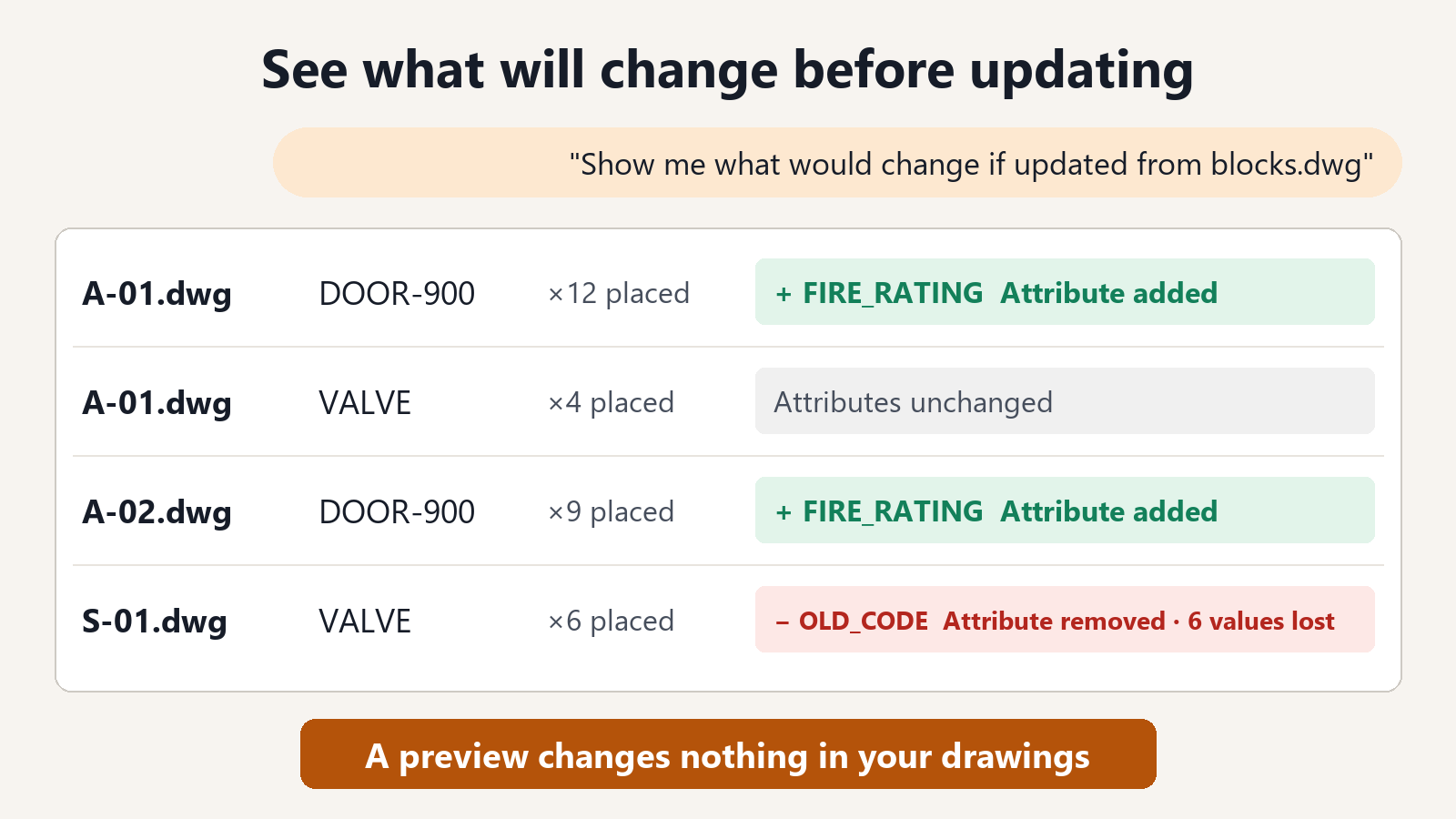
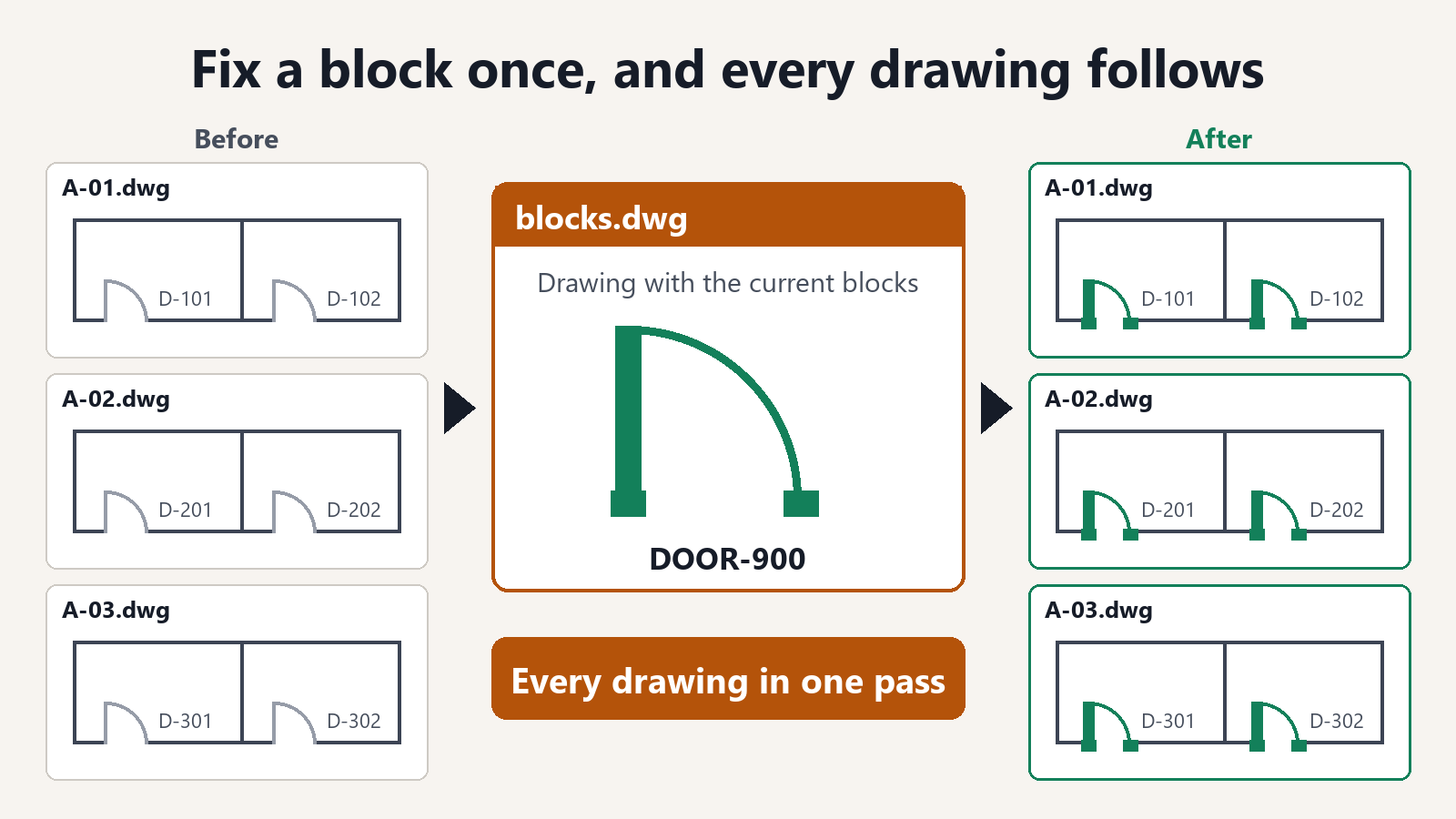
Yes. Ask the AI, for example, "Show me what would change if the blocks in C:\Drawings\ProjectA are updated from C:\Standards\blocks.dwg". You can check what will change before you update. Saving the updated drawings is a subscription feature.